


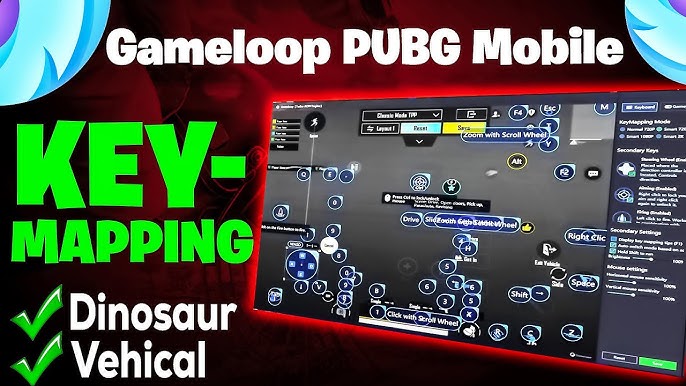
Emulator keyboard mapping is an essential feature for gamers who want to play mobile games on PC with full control and precision. Many players struggle with touch controls on emulators like BlueStacks, NoxPlayer, and LDPlayer, but keyboard mapping transforms gameplay, making it smooth and competitive.
When I first used BlueStacks for PUBG Mobile, the default touch controls felt clunky and slow. Once I configured proper emulator keyboard mapping, my aiming, shooting, and movement became seamless, giving me a major edge during matches.
What is Emulator Keyboard Mapping?
Emulator keyboard mapping is the process of assigning keyboard and mouse functions to mobile game controls. It allows players to use physical keys instead of on-screen touch buttons, improving reaction time and accuracy.
For example, movement controls like W, A, S, D can replace joystick inputs, while shooting, crouching, and jumping are assigned to nearby keys for faster access. This system is vital for competitive games such as Free Fire, Call of Duty Mobile, and PUBG Mobile.
Popular emulators with keyboard mapping features
BlueStacks is widely recognized for its intuitive keyboard mapping interface, which allows users to drag and drop controls. It supports customizable layouts for each game, giving players full flexibility.
NoxPlayer excels with macro support and pre-built keyboard mapping templates for popular games. LDPlayer offers advanced mapping settings with adjustable key sensitivity, making it ideal for fast-paced shooters. Other emulators like MEmu Play and Genymotion also support keyboard mapping, but focus more on lightweight performance and developer testing.
Setting up keyboard mapping in BlueStacks
BlueStacks makes it easy to configure emulator keyboard mapping. After launching a game, players can click the keyboard icon to open the mapping panel. Drag the on-screen buttons to match the desired keys and save the layout.
Games like Free Fire benefit from this setup, as aiming and shooting require precise timing. Adjusting the sensitivity ensures smoother controls and faster response times.
Keyboard mapping for FPS games
First-person shooter games demand precise control. Using emulator keyboard mapping, players can assign movement keys, aim, fire, crouch, and jump to accessible keys for quick actions.
For example, W-A-S-D for movement, space for jump, Ctrl for crouch, and mouse buttons for shooting enhance gameplay accuracy. NoxPlayer’s macro support further improves repetitive actions, making high-level gaming more manageable.
Keyboard mapping for RPG and strategy games
RPGs like Genshin Impact require complex inputs for combos and skills. Emulator keyboard mapping lets players assign skills to number keys or function keys for rapid activation.
Strategy games also benefit by mapping multiple controls to the keyboard, allowing faster troop deployment or resource management without relying on slow touch gestures.
Tips for an effective keyboard mapping setup
-
Keep frequently used actions close to your movement keys.
-
Avoid overcrowding keys to prevent accidental presses.
-
Test different layouts to find the one that suits your playstyle.
-
Use sensitivity settings for mouse-controlled actions like aiming.
These tips enhance emulator keyboard mapping efficiency, making gameplay smoother and reducing strain during long sessions.
Advanced mapping techniques
Advanced players can use multi-key mapping and macros. For instance, BlueStacks and NoxPlayer allow simultaneous key presses, automating complex combos or sequences.
Macro features are useful in games like Free Fire or PUBG Mobile to perform repetitive actions automatically, freeing up attention for strategic moves. This creates a noticeable emulator keyboard mapping advantage over standard touch controls.
Customization by game genre
Different games require different layouts. Shooters benefit from tight, responsive mapping, while RPGs need keys for skill combos. Emulator keyboard mapping flexibility allows users to customize layouts per game.
Gamers often share templates for popular games on forums. Using these tested layouts reduces trial-and-error time and improves overall performance.
Performance considerations
Proper mapping can also improve emulator performance. When combined with BlueStacks performance settings like allocated RAM, CPU cores, and resolution adjustments, keyboard mapping ensures smooth gameplay without lag.
Even mid-range PCs can handle high-demand games when emulator keyboard mapping is paired with resource optimization.
Using NoxPlayer for competitive gaming
NoxPlayer is preferred by competitive players because it combines keyboard mapping with macro functionality. Assigning shortcuts for crouch-jump sequences or auto-aim scripts enhances reaction speed.
Competitive players often customize sensitivity per game mode, which provides a consistent emulator keyboard mapping experience across multiple games.
Keyboard mapping for casual players
Even casual gamers benefit from mapping. Assigning basic movement and action keys allows smoother gameplay and reduces frustration with touch controls.
Casual players enjoy games like Among Us or Clash Royale on PC with emulator keyboard mapping, making interactions faster and more precise.
Cloud-based game streaming with mapping
Some platforms allow cloud-based mobile gaming on PC. Emulator keyboard mapping ensures that even streamed games respond like native applications, providing full control with minimal input lag.
This is especially beneficial for players with less powerful PCs, as mapping offsets the delay in streamed controls.
Real-life experiences and community tips
Players frequently share insights on forums. For example, PUBG Mobile enthusiasts recommend mapping jump, crouch, and prone close to movement keys to avoid reaction delays.
RPG players share Genshin Impact templates that allow quick skill rotation, proving how emulator keyboard mapping is critical for competitive and casual success.
Maintaining your setup
Regularly updating your emulator ensures compatibility with new games. Test layouts periodically to refine emulator keyboard mapping as games evolve with updates or new content.
This practice prevents layout conflicts and keeps gameplay smooth, maintaining a consistent gaming experience.
Future trends in emulator mapping
Emulators are evolving to provide smarter automatic key mapping suggestions using AI. Future updates in BlueStacks, NoxPlayer, and LDPlayer will optimize key layouts per game automatically, reducing setup time and improving performance.
These trends highlight how emulator keyboard mapping is becoming more sophisticated, enhancing precision and user experience across mobile games on PC.
Read also:
green bay packers vs dallas cowboys match player stats
oklahoma city thunder vs indiana pacers timeline
indiana pacers vs oklahoma city thunder timeline
oklahoma city thunder vs pacers timeline